
Changing the Runtime Environment for an Azure App Service

About six months ago, I built a small API application designed specifically for Azure. It leveraged several Azure-native features, including synchronization mechanisms and Azure App Registration for sending requests to SharePoint. The application was built using .NET 8 and deployed to a development environment.
After the initial deployment, the solution was reviewed by the customer and demonstrated internally. Recently, I was asked to prepare the application for production.
Over time, many of the project’s dependencies had become outdated. Rather than upgrading them incrementally, I decided to move the entire solution to .NET 10 and update all packages to their latest versions. While I’m not strictly following a “zero trust” approach to updates, I generally prefer keeping dependencies current to benefit from performance improvements, security patches, and long-term support.
The application was running as an Azure App Service configured with the .NET 8 runtime. After upgrading the codebase, it became necessary to switch the runtime environment to .NET 10.
However, this wasn’t entirely straightforward. The application relies on a Managed Identity to retrieve a certificate from Azure Key Vault. Because of this dependency, I couldn’t simply delete the existing App Service and create a new one without reconfiguring identities and permissions.
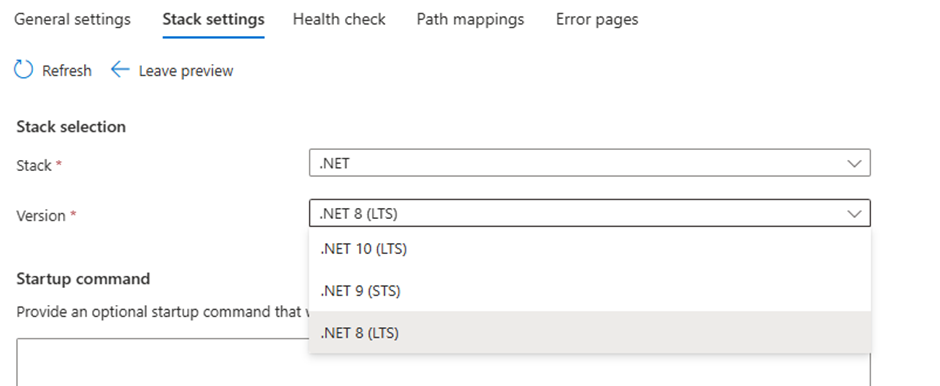
Instead, I updated the runtime stack of the existing App Service. This can be done in the Azure Portal under:
Settings → Configuration → Stack settings
By changing the runtime version from .NET 8 to .NET 10, I was able to keep all existing configurations intact - including Managed Identity and Key Vault access - while running the updated application.
 Custom Label with multiple styles in TextField of Fluent UI
 First impressions after using the new SPFX 1.22.2 with Heft
 Changing the Runtime Environment for an Azure App Service