
A Hidden Visual Studio Trick: Execute Selected Code with double Ctrl+E

Did you know that in Visual Studio you can execute just a selected piece of code without running the whole application? There’s a handy (and surprisingly little-known) shortcut for this:
Select the code and press Ctrl + E and then again Ctrl + E.
Depending on the context and project type, Visual Studio will try to evaluate or execute the selected code. This is especially useful when you want to quickly test logic, expressions, or small snippets without restarting your entire app.
Why this is useful
- Faster debugging – no full rebuilds or reruns
- Quick experiments with calculations or conditions
- Better focus – test exactly the code you care about
It's not the replacement of the tests, because this way you can execute only the selected text. And that is obviously useless when you use dependencies. But when you need to be sure, for example, that the string looks how you want to, you can use the tip with Ctrl+E x2.
 How to Never Forget Temporary Test Code: Using #if RELEASE + #error in Visual Studio
 Azure.RequestFailedException when start App in Visual Studio
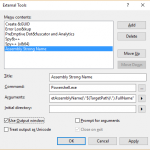 How to get assembly strong name in Visual Studio